
System volume
Extend C: when Windows says there is no room
Updated May 2026 · 10 min read
The C: volume can only grow into unallocated space that touches its end on the disk map. Recovery partitions, OEM slices, or a full D: parked in the way are the usual villains.
Read the map before clicking anything
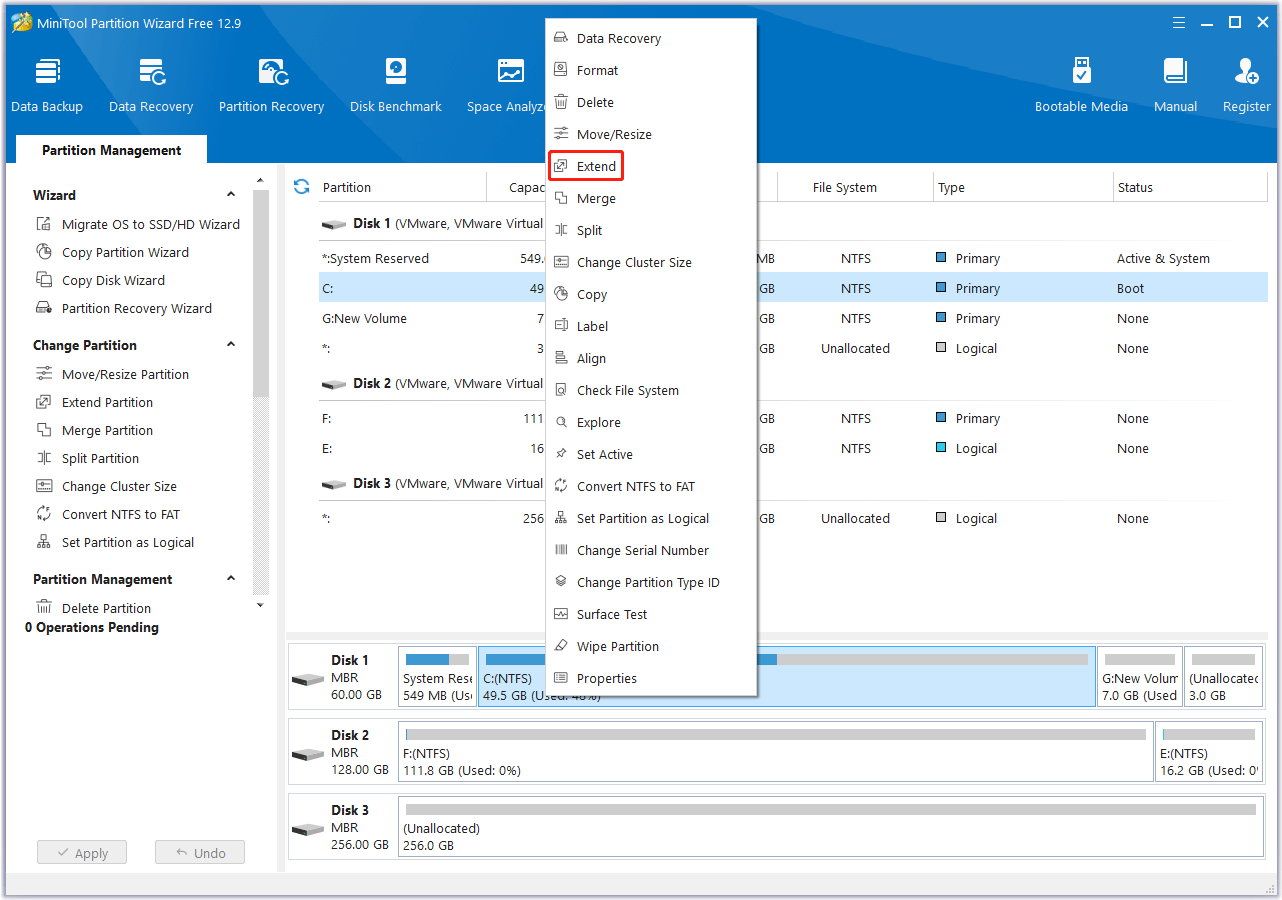
Open Disk Management or Partition Wizard and note partition order left-to-right on the disk—that order is the physical LBA layout simplified for humans.
If unallocated space exists but sits on the wrong side of another volume, Extend Volume stays disabled until you shrink or move the blocker after backups.
A safer sequence many admins follow
Image the disk, run chkdsk on C:, shrink the nearest data partition from inside Windows, then move partitions if the tool supports it so unallocated hugs C:.
Only then extend C:. Reboot once even if Windows does not demand it, so mount points and shadow copies settle.
Where Partition Wizard helps
Move and resize operations can be queued, but power loss mid-move is catastrophic—use a UPS on desktops and fully charge laptops.
Compare what each pending operation will touch; cancel anything you cannot explain to another engineer.