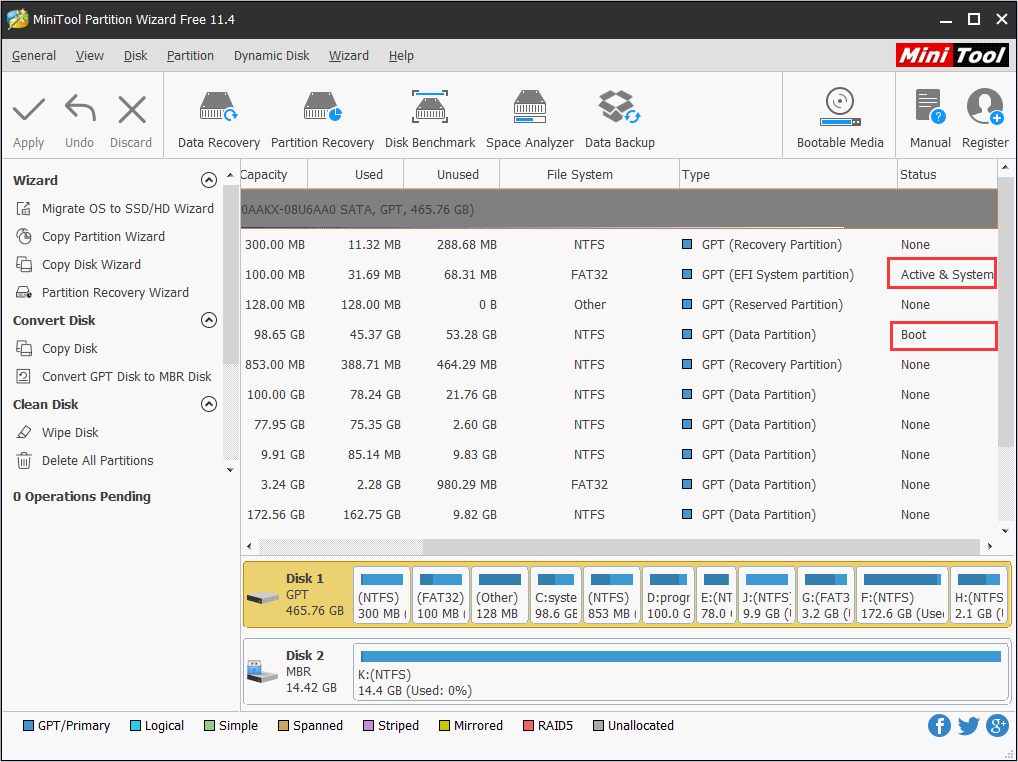
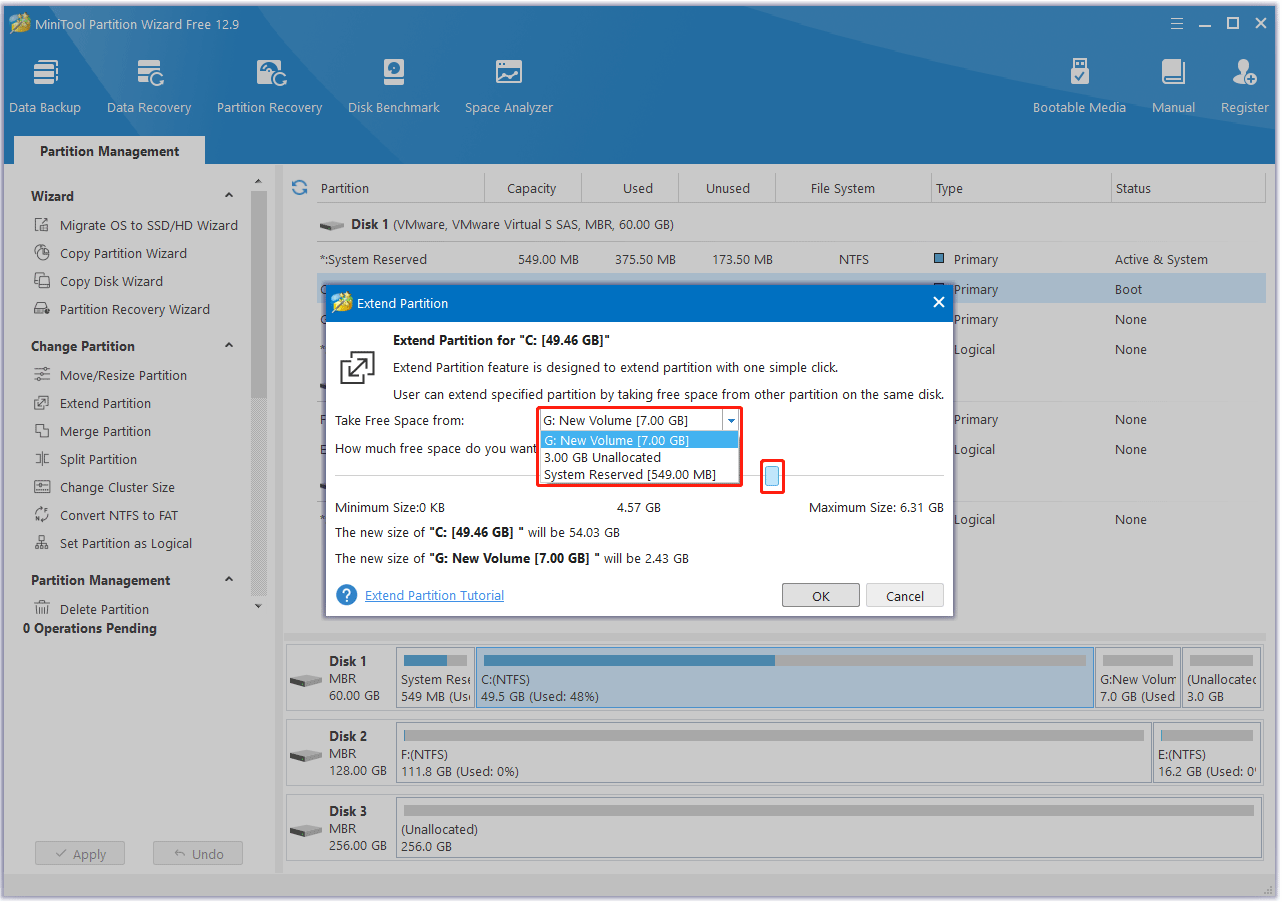
Read the disk map before the wizard
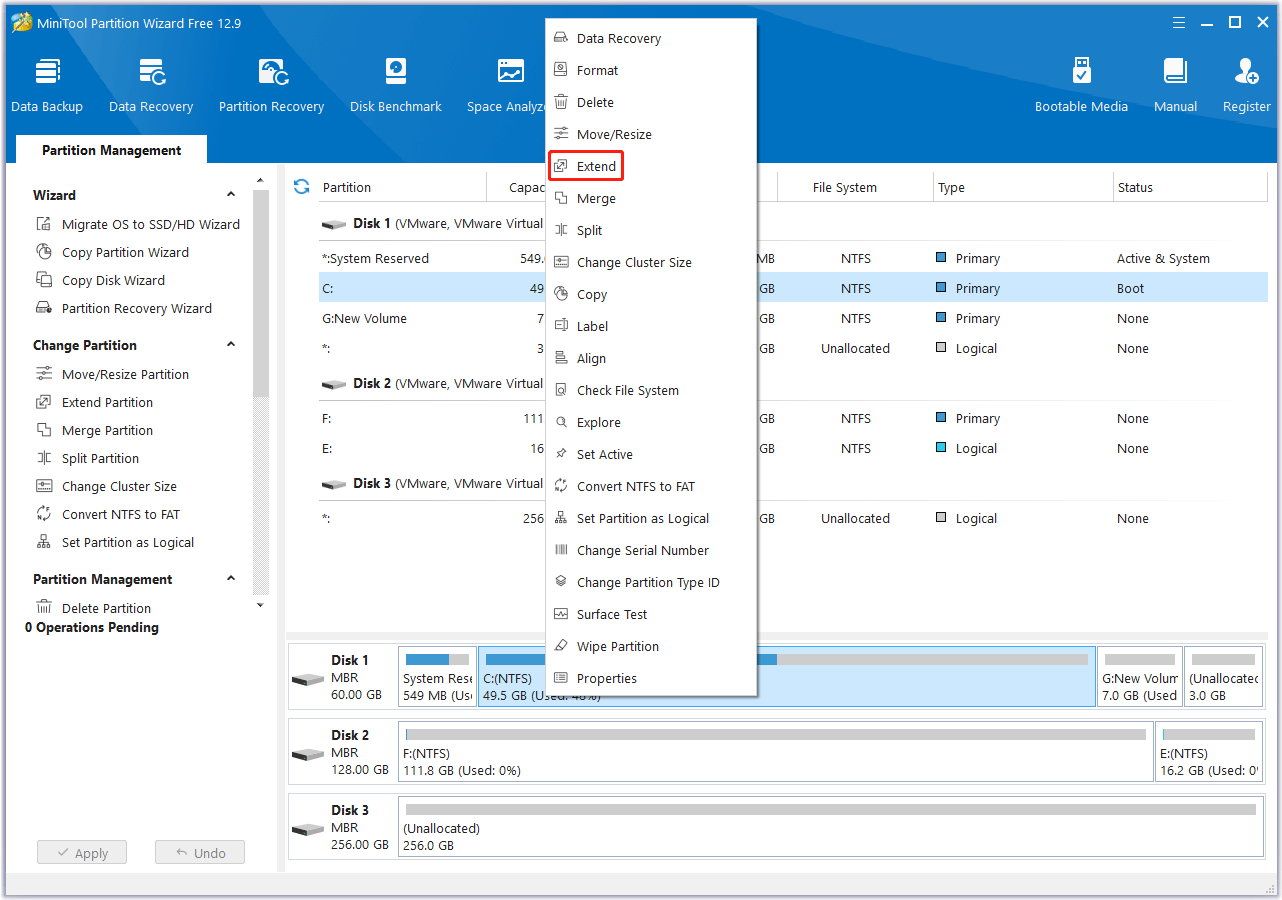
Disk numbers, partition order, and recovery slices explain more than any single button label. When Extend stays gray, the map usually shows a neighbor sitting between free space and the volume you want to grow.
Windows disk management
From SSD migrations to freeing space on C:, you get structured checklists: map the layout, understand constraints, verify boot paths, then apply the smallest change that solves the problem.
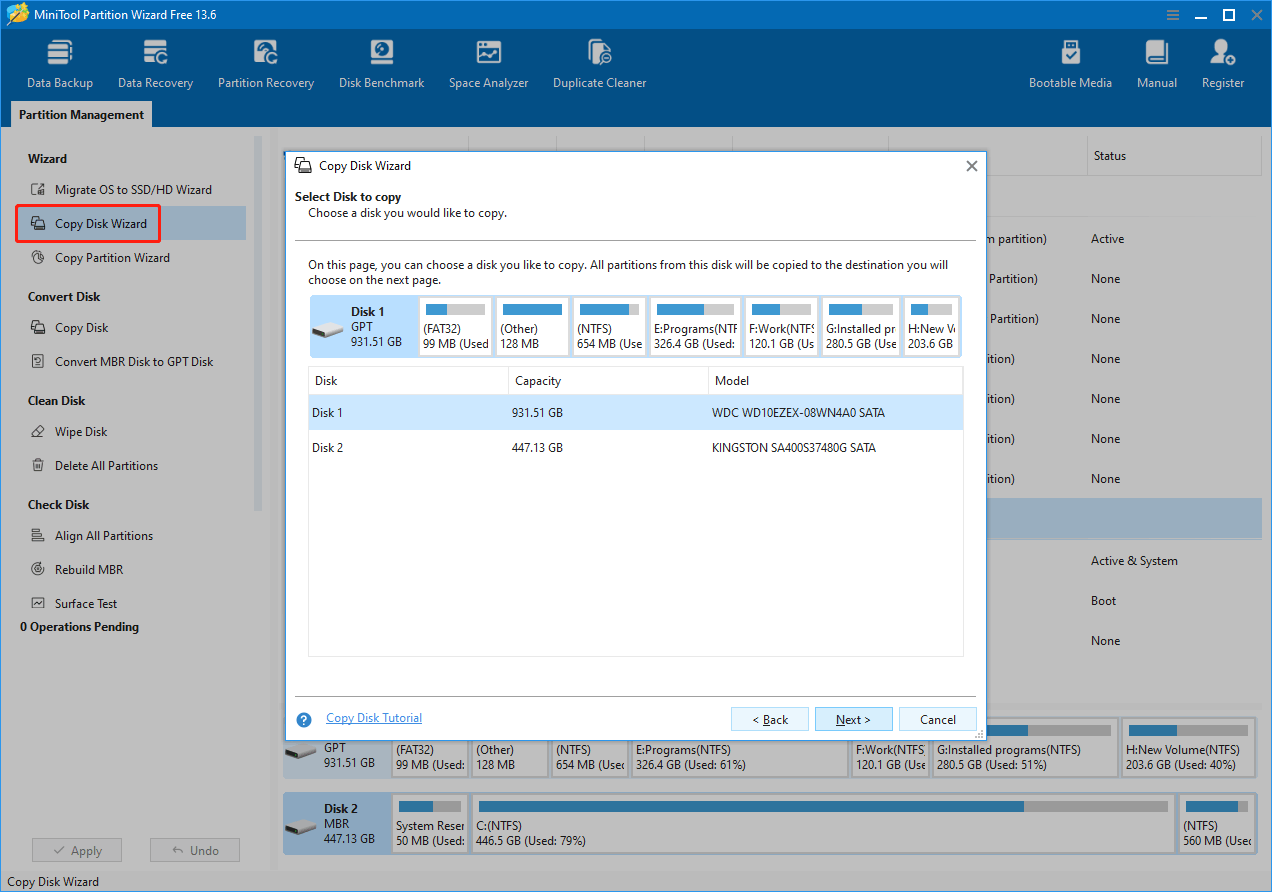
Illustrative example: modern installs can consume noticeable space when you plan partitions.
Beyond the hero
Disk work is geometry plus firmware plus habits. These notes sit right under the hero so newcomers see the same themes the long articles repeat: map the layout, shrink the problem, verify boot paths, then apply the smallest change that still solves it.
Use the cards as a reading order when you are not sure where to start—each one links to the mental model the blog uses when screenshots drift between Partition Wizard editions.
Disk numbers, partition order, and recovery slices explain more than any single button label. When Extend stays gray, the map usually shows a neighbor sitting between free space and the volume you want to grow.
Capacity math, boot mode alignment, and verification time belong in the plan—not after the copy finishes. Keep the source disk untouched until the new drive boots twice on purpose, not once by luck.
BitLocker and similar layers decide whether blocks can move at all. SMART trends and cable quality decide whether a tired drive should receive terabytes tonight or after a calmer hardware swap.
None of this replaces publisher release notes or support channels you choose yourself; it is the editorial scaffolding we use so guides stay consistent when UI text changes.
Start here
These four entry points cover most “why is my disk doing that?” moments: layout style, free space geometry, health signals, and blunt FAQ answers when you need a yes or no before reading deeper.
Each card opens a standalone article or page—bookmark them, send them to a friend mid-upgrade, or read only the section that matches your Disk Management screenshot.
Firmware expectations, boot chains, and when converting partition styles is worth the risk versus reinstalling clean.
Open itWhy Extend Volume stays gray, how contiguous unallocated space really works, and how to shrink the right neighbor first.
Open itTrends beat single headline strings—learn which attributes spike before clones and which noise you can monitor instead of panic-deleting.
Open itTwelve blunt responses about backups, BitLocker, dual boot, and what “Unknown Not Initialized” can mean on good hardware.
Open itStill deciding between Disk Management and a partition wizard?
Skim the compare section later on this page for a calm split: where built-in tools stop and where a pending queue with explicit moves earns its complexity. Until then, avoid stacking unfamiliar operations in one Apply batch.
Reality check
These show up in support threads more often than corrupted partition tables. If one sounds like your inner monologue, pause and read the linked guides before you queue destructive work.
This site is editorial only; when on-screen product UI changes, the underlying constraints above still apply.
Reading path
Treat disk work like a short project: freeze scope, execute the smallest queue that still solves it, then verify boot and data paths before you celebrate. The three beats below match how our long articles are structured.
Write down disk numbers, letters, and firmware mode. Image or copy anything you cannot reinstall in an afternoon. Close apps that pin files on the volume you plan to shrink.
Read the pending operations top to bottom. Avoid mixing unrelated deletes, moves, and formats in one Apply unless you already trust the order. Prefer power-stable ports and calm cables.
Re-open Disk Management, confirm letters and sizes, boot twice on purpose, and glance at SMART after heavy copies. Only then retire old disks or recycle enclosures.
Watch list
Most disk jobs fail from boring causes: unstable power, flaky USB bridges, or a queue that includes one operation you did not mean to include. The list beside this column names patterns we re-check before clicking Apply.
If several lines feel familiar at once, fix the environment first—swap the cable, move to wall power, close file lockers—then retry the shrink or clone with a shorter queue.
Log these before you blame “bad software”
For SMART detail patterns, open the SMART article from the topic cards above; for grayed-out Extend, read the extend C: guide before resizing neighbors.
Who this helps
You might be upgrading one laptop, enforcing policy on dozens of PCs, or helping family over the phone. The articles use the same disk vocabulary—only the risk window and rollback plan change.
You bought a larger SSD, need C: breathing room, or want to move Windows without reinstalling. Start with the map-and-backup rhythm, then pick either extend or clone based on how messy your recovery partitions are.
You care about BitLocker states, maintenance windows, and evidence you can show after a change. Our notes call out encryption gates and verification passes so Apply logs match what you promised stakeholders.
You are reading aloud over a video call while someone else clicks. Shorter checklists and explicit “stop if you see this” lines help you keep the session calm when Disk Management labels do not match their mental model.
Product lens
Instead of a dense matrix of every edition, we focus on workflows: resizing with blocked free space, cloning with boot verification, and health signals before large copies—so you know exactly what to validate before Apply.
Editorial standard
Disks punish shortcuts. We write for the moment you are staring at Disk Management with doubt—calling out constraints, rollback paths, and edition drift so you are never guessing what a button will do to recovery partitions.
When boxed marketing copy changes, the physics does not: contiguous free space, boot order, encryption gates, and SMART trends stay constant. We anchor every story to those facts so you can map any UI back to the disk in front of you.
Offline workflows
Some layouts cannot be fixed from inside Windows—the OS locks the very volumes you need to shrink. Boot media moves you to a smaller environment where the disk map is the only variable.
Windows may refuse to shrink C: while hibernation, page files, or crash dumps pin the tail of the volume.
Repair or clone jobs deserve a second opinion before you wipe the only copy of a failing disk.
OEM recovery partitions often sit where you need unallocated space—offline tools make the pending queue easier to reason about.
Before you click Apply
Disk tools are powerful because they are blunt. Slow down once at the start so surprises shrink to things you can read on screen instead of recover from backups.
Confirm which physical disk is Disk 0 vs Disk 1, which volume letter is Windows, and whether any volume is BitLocker-protected before you queue moves.
Pick a single outcome—extend C:, migrate OS, or recover space—and avoid stacking unrelated edits in one Apply batch unless you already trust the order.
Projects, photos, keys, and odd drivers belong in an image or second disk copy. Assume the worst hour of your week happens right after Apply starts.
Shut heavy apps, pause aggressive AV scans on the volumes you touch, and eject external disks you are not intentionally migrating so labels stay stable.
Every queued operation runs in order. If a delete or format sits above a move you thought was safe, stop—reorder or cancel until the story matches your intent.
Short walkthrough video from our media folder complements the written steps: pay attention to pending operations and how the queue applies changes in order.
Choose the right surface
Windows ships a capable partition UI for simple shrinks and deletes. The pain arrives when recovery slices, dynamic disks, encryption, or multi-step moves need a clear pending queue you can sanity-check before Apply.
Neither tool removes the need for backups. Pick the smallest UI that still shows the whole story for your layout, then read the queue like code review.
Beyond the intro
If you are past the intro video, these articles go deeper on clones, uninitialized disks, encryption locks, and health signals worth acting on.
Capacity math, partition style alignment, EFI vs BIOS boot entries, and verification before wiping the old drive.

Cable issues, driver stacks, partition table damage, and how to avoid quick-formatting the wrong disk.

Suspend or decrypt first, understand protectors, and why offline moves fail when encryption is active.
Which attributes trend badly, how to read normalized values, and when cloning is urgent versus optional.
Common layouts
Pick the story closest to yours, keep backups ready, and read only the sections you need—each linked article stands alone if you want to send it to someone else mid-crisis.
Recovery partitions, OEM tools, and small EFI slices often sit between the space you want and the volume you need to grow. The fix is rarely one Extend click—it is shrinking the right neighbor, moving blocks, or accepting a clone instead.
Encryption is not a partition label—it is a gate on who can move data blocks. Suspend or decrypt with recovery keys in hand, then plan moves during a maintenance window when IT policies allow offline work.
Sometimes the hardware is fine and the bridge is lying; sometimes the partition table is damaged and Windows is telling the truth quietly. Rule out cables and ports before you initialize anything with a scary name.
Composite scenarios based on common support threads—names are illustrative, steps are technical.
I finally moved empty space from my games drive to C: without reinstalling. The scary part was the recovery partition in the middle—breaking it into steps made sense.Reader note — laptop upgrade
Cloning to a smaller NVMe looked impossible on paper, but shrinking the data partition first and cloning only used blocks worked. Still held my breath on first boot.Reader note — SSD swap
Boot media saved me when Windows refused to shrink its own volume. Doing it offline felt old-school but predictable.Reader note — offline repair
After the reboot
Apply finishing without errors is not the same as Apply finishing correctly. Run a short post-flight so you notice missing volumes, wrong letters, or a disk that suddenly sounds wrong before you declare victory.
Open Disk Management once more: does C: still host Windows, are EFI and recovery partitions still present, and does the BIOS or UEFI boot entry still point at the disk you expect?
Launch a few heavy apps, mount any encrypted containers you rely on, and open documents from both old and new locations if you cloned instead of moved.
If you moved terabytes, let the disk idle briefly then re-read SMART trends—clones stress NAND and weak cables alike.
Future you will forget which disk was Disk 1 during the migration. A short note in your password manager or ticket system prevents panic during the next upgrade window.
Know when to pause
Partitioning while the machine fights you is how queues get interrupted. If any line below is true, fix the environment before resizing or cloning.
Each article is standalone so you can share a link with a friend who hit the same wall.
Complete list
Each link opens a standalone guide you can bookmark or forward—excerpts stay short so you can scan for the failure mode that matches your machine.
Firmware modes, partition limits, Windows 11 readiness, and when converting styles is worth the friction.
Why Extend Volume grays out, how unallocated space must sit, and how to shrink the right neighbor first.
Capacity math, partition style alignment, EFI vs BIOS boot entries, and verification before wiping the old drive.
Cable issues, driver stacks, partition table damage, and how to avoid quick-formatting the wrong disk.
Suspend or decrypt first, understand protectors, and why offline moves fail when encryption is active.
Which attributes trend badly, how to read normalized values, and when cloning is urgent versus optional.
Terms that block good reads
Most worst-case stories come from mixing firmware terminology with free-space geometry. Nail these two ideas first; the guides assume you have seen them once.
MBR is legacy partition style with smaller practical limits on boot disks; GPT is modern and pairs with UEFI. Converting styles or disks is doable but never casual because boot entries and recovery partitions ride along.
Read the MBR vs GPT primerWindows extends into contiguous unallocated space immediately after the volume on disk. Free space inside a partition does not count until you shrink the neighbor or move partitions so the geometry lines up.
Read the extend C: walkthroughFast answers
Expand a row for a short answer—then jump to the full FAQ when you want blunt detail.
Usually yes when power is stable, volumes are healthy, and you read the pending queue—but disk work is never risk-free. Back up first, close apps that lock files, and avoid stacking unfamiliar operations in one Apply batch.
Windows needs contiguous unallocated space immediately after the volume on the same disk. Free space inside another partition does not count until you shrink or move the neighbor that sits in the way.
Cloning saves time when layouts fit capacity and boot modes line up; reinstalling is cleaner when encryption, drivers, or junk accumulated for years. Either path needs verification before you wipe the old disk.
The FAQ collects blunt answers about risk, backups, BitLocker, dual boot, and what Unknown Not Initialized really means.
Tune the machine first
Before you blame Partition Wizard for a grayed-out button, split the story: is Windows holding files open, or is the enclosure blinking off for a millisecond? Fixing the right layer saves hours of random retries.
Log which layer you ruled out so the next troubleshooting pass starts smarter than the last one.
Before you install
This site is editorial only: we do not host installers or endorse a single download host. After your own review, fetch builds only over HTTPS, verify checksums or signatures when published, and read every installer screen so optional bundles never surprise you.
Opens a web search in a new tab so you can pick your own destination.
Search for an installer (new tab)Trademarks belong to their respective owners. Content here is independent and may not reflect every product edition.